HOW TO BUILD A WARHAMMER 40,000 ARMY LIST
Enlist is where army lists live: yours, everyone else's, and the tournament lists that won recently. This guide covers getting a list in, checking whether you can actually field it, and sharing it.
The section has three boards: Manage (your lists), Discover (everyone's) and Compare (two of any of them, side by side).
How do I create an army list?
A list arrives one of three ways.
Build one from scratch. Hit Create List on Enlist › Manage. A short wizard walks the choices: faction, game size, unit constraints, detachment (with the 11th edition's Detachment Points budget), Force Disposition, warlord, name. It then opens the finished list in edit mode, where you add units from a catalogue filtered by your list's constraints, picking each squad's size as you go. Remove, crown or retune anything later from the same page's Edit button.
Import one. Hit Import List on Enlist › Manage, or go to Collect › Import and choose a list as the destination. Paste or upload a roster from whichever builder you already use and it becomes a list here.
Clone one. Find a list on Discover, the tournament lists included, and hit Clone. It lands on your own shelf as a fresh copy you can keep. Cloning your own list duplicates it, which is the usual way to make a variant.
Whichever way it arrives, the same page then tells you what you own of it, what it costs, what state it is in and how it compares. Creating, cloning and importing all need a connection and an account.
How do I import a list from BattleScribe or New Recruit?
Open Collect › Import and either upload a file or paste the text.
Recognised formats:
- BattleScribe: `.rosz`, `.ros` and `.xml`
- New Recruit: JSON export
- Plain text: WTC format, Markdown, or the Games Workshop app's own export
Then choose New List as the destination. You will also be asked what to do with any unit in the roster you do not own (add it to your collection, add it to your wishlist, or ignore it) and you get a preview with any reconciliation warnings before it commits.
If a unit fails to reconcile, it is usually a name the importer could not match or a points value outside tolerance. The preview tells you which.
How do I import into a list I already have?
Same wizard, but pick Existing List and choose which one. You then get two modes:
- Merge appends the roster's units, dropping any the list already holds at the same datasheet and points tier, so importing the same file twice does not double everything.
- Replace contents swaps the units wholesale and takes the file's detachment, points cap and size with them.
Neither mode ever changes the list's name. That is the list's identity and what its share link is labelled with, so it stays yours to set.
Can I check whether I own everything in a list?
Yes. Any list shows a readiness statement and badge answering "can I field this?" It checks the list against your actual collection and tells you:
- Which units you do not own at all
- Where the list wants a bigger squad than you have
- Whether the list is legal for its points cap and constraints
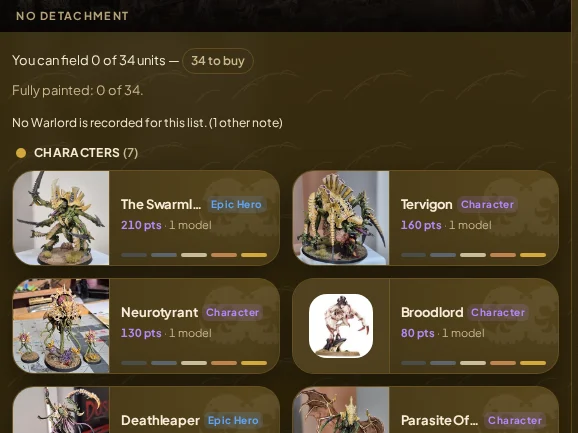
What don't I own? breaks it down, and Add unowned to my wishlist puts the gaps straight onto your buy list. Match my build to this list queues exactly those models on your build queue, so tonight's job is already picked.
How do I clone someone else's list?
Open the list and hit Clone. It copies to your own shelf under a de-duplicated name, with fresh ids, and its constraint widened if needed to fit your collection. The original owner's details are stripped, so it becomes your list.
Tournament lists on Discover clone the same way, so you can start from a list with a tournament record behind it.
How do I compare two lists?
Go to Enlist › Compare. With nothing chosen you get a two-column picker; each side can be one of your lists, anyone's published list, or a tournament list.
The comparison aligns both rosters section by section and gives you totals, a matchup read and the tournament record for those armies. Highlight differences narrows it to what actually differs. You can save the comparison as an image or share the link; it resolves for whoever you send it to.
How do I share or export a list?
Share copies a link (or opens the share sheet on mobile). Any list page is public to whoever has the link, so long as your profile is discoverable.
Export List offers:
- A link with a QR code
- Text in WTC, Markdown or GW style
- A BattleScribe file
- Datasheet cards to print for the table
- An image
- A Tabletop Simulator spawn
How do I favourite a list?
Hit the star. Favourites pin to the top of both boards, including tournament lists. It is a private bookmark (nobody is told) and you can favourite your own lists. Needs a connection.
How do I attach a leader to a squad?
Open a unit in a list and use the Attachment control to attach a character to the squad it leads. The edge is stored on the list, so it travels with the list when it is shared or exported.
If you have already recorded that pairing in your collection, Follow Set Up takes it from there rather than making you say it twice. A unit holds one attachment at a time, so attaching to a new squad clears the old edge. Needs a connection.
How many lists can I have?
Three on a free account, six on the first paid tier, and unlimited above that. Collections have a separate points cap.
Frequently asked questions
Can I build a list from scratch in the app?
Yes. Create List on Enlist › Manage runs the wizard and opens the result in edit mode, ready for units. If you build elsewhere, the import wizard reads BattleScribe, New Recruit and several plain-text formats instead.
Do I need an account to use lists?
Yes. Lists are stored on your account, so they are not available in local mode. Discover is readable by anyone, but keeping, cloning or importing a list needs signing in.
Does the app check my list is legal?
It checks the points cap and constraints and flags what it finds, alongside the ownership check. Event packs add restrictions of their own, so read those separately.
Can other people see my lists?
Only if your profile is discoverable, which is the switch in Settings. On, your lists appear on Discover and share links work; off, they do not.
Why did some units fail to import?
Most often a name mismatch against the game data, or a points value outside tolerance. Fix it in the source file and re-import; nothing is written until you confirm the preview.